StreamRecorder vs OBS: Which Should You Use?
I use both of these tools. I'm not going to pretend otherwise.
OBS Studio sits on my desktop for recording my own screen, capturing video calls, and the occasional local recording when I need absolute control over output settings. StreamRecorder.io runs in the background catching every live broadcast from the 15 or so streamers I follow across Twitch, Kick, TikTok, and a handful of Asian platforms.
They're not really competitors. They solve fundamentally different problems. But I keep seeing people ask "should I use StreamRecorder or OBS?" as if they're interchangeable, so let me walk through what each one actually does and where the lines are.
What OBS Studio Does
OBS Studio (version 32.1.2 as of April 2026) is free, open-source software for recording and streaming. It captures video and audio from your computer: your screen, your webcam, your microphone, specific application windows, browser tabs, game footage, or any combination of those things. It runs locally on your machine and saves recordings to your hard drive.
OBS is the standard for a reason. The encoder options are excellent. NVENC hardware encoding on Nvidia GPUs cuts CPU usage by up to 70%. You get granular control over resolution, bitrate, frame rate, codec, and container format. The latest version defaults to Hybrid MP4 recording, which means files survive crashes without corrupting. You can configure scenes, add overlays, mix audio sources, and stream simultaneously to Twitch, YouTube, or Kick.
For streamers broadcasting their own content, OBS is essentially mandatory. For anyone doing screen recordings, tutorials, video editing source capture, or any task where you need to record what's happening on your own computer, OBS is the right tool.
What OBS is not designed for: monitoring other people's live streams across multiple platforms and recording them automatically when they go live.
What StreamRecorder Does
StreamRecorder.io is a cloud-based service that records other people's live streams automatically. You add the streamers you want to follow, and the service monitors their channels 24/7 across 11 platforms: Twitch, Kick, TikTok, YouTube, AfreecaTV (SOOP), CHZZK, Pandalive, FlexTV, Douyin, Bilibili, and Twitcasting.
When a streamer goes live, recording starts on a remote server. When they stop, the recording is saved to the cloud. You can stream it back through the browser or download it to your device. Your computer doesn't need to be on. You don't need to know when the stream starts. You don't need to be awake.
Free tier covers 720p with up to three channels. Paid plans go up to 4K with more simultaneous recordings.
What StreamRecorder is not designed for: recording your own screen, capturing video calls, or any task where the source is your local computer.
The Actual Comparison
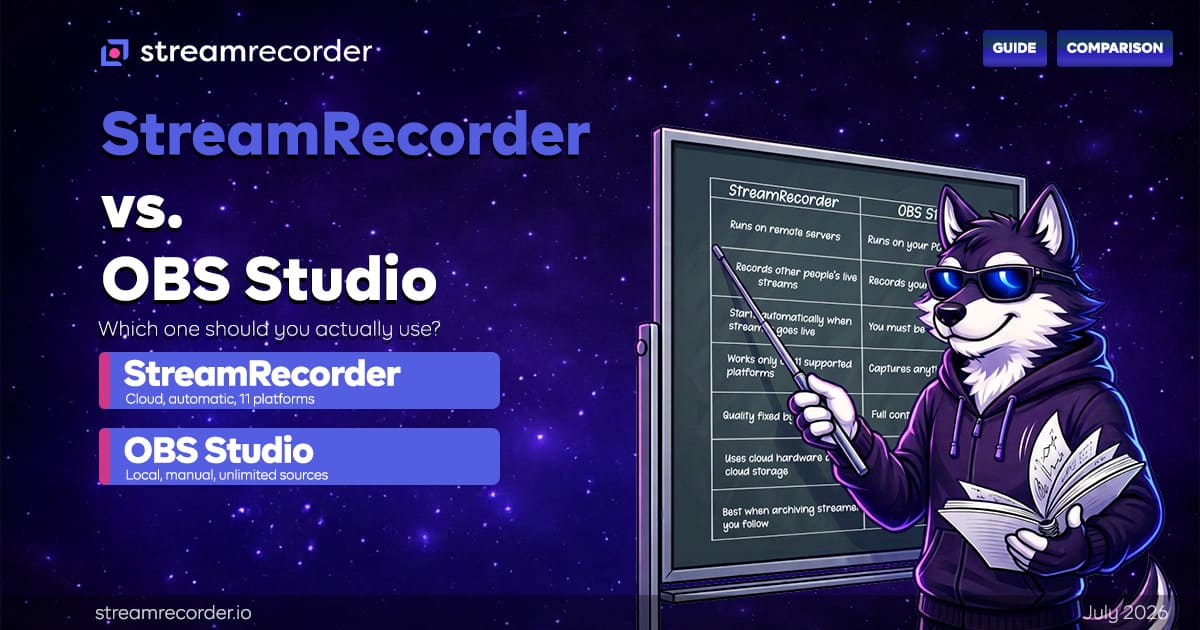
These tools overlap in exactly one scenario: when you're watching someone else's live stream on your computer and want to record it. In that specific case, both could technically do the job. Here's how they compare.
Automation
OBS: None. You open the stream in a browser, set OBS to capture that window, and manually click "Start Recording." You must be present for the entire broadcast. If you forget to hit record, you get nothing.
StreamRecorder: Fully automatic. Add the streamer once. Every future broadcast gets captured without any manual intervention.
This is the dividing line for most people. If you follow streamers who go live unpredictably (which is most streamers), OBS requires you to be at your desk, watching, with the software running. StreamRecorder doesn't care where you are.
Platform Coverage
OBS: Anything that plays on your screen. There are no platform restrictions because OBS captures pixels from your display. If you can see it, OBS can record it.
StreamRecorder: 11 specific platforms. If the streamer you follow is on a platform StreamRecorder doesn't support, it won't help. But for the platforms it does cover, the integration is purpose-built and handles detection, recording, and storage natively.
Quality Control
OBS: Maximum control. You choose the resolution, bitrate (up to 8,500 kbps on Twitch Partner streams), encoder (x264, NVENC, AMF), codec (H.264, HEVC, AV1), and container format. If you have the hardware and the bandwidth, OBS can record at whatever quality you want.
StreamRecorder: Quality tiers based on plan. Free tier is 720p. Paid plans go up to 4K. You don't control the encoder settings or container format. The service handles those decisions.
For most live stream recordings, this difference matters less than it sounds. Stream source quality on platforms like Twitch caps at 1080p/60fps for most broadcasters. At 720p, StreamRecorder captures a very watchable recording. At 4K on a paid plan, you're matching or exceeding what most streamers actually broadcast at. But if you need frame-perfect quality with specific encoding parameters for professional editing, OBS gives you that control.
Hardware Requirements
OBS: Your computer does the work. Recording a 1080p stream at a high bitrate uses significant CPU or GPU resources. With NVENC, GPU encoding cuts CPU load dramatically, but your machine still needs to be running for hours. Expect 5-12 GB of storage per hour of 1080p footage depending on bitrate settings.
StreamRecorder: Zero local hardware requirements. Recording happens on remote servers. Your laptop could be off, your phone could be dead. Doesn't matter. Storage lives in the cloud until you download.
Cost
OBS: Free. Forever. Open source, no premium tiers, no subscriptions.
StreamRecorder: Free tier available (720p, 3 channels). Paid plans for higher quality and more channels. Current pricing is $12.99, $19.99, or $49.99 depending on the plan.
OBS wins on pure cost. You can't beat free. But the cost comparison only makes sense if OBS can actually do what you need. If the stream you want to record happens at 3am and you're asleep, OBS's $0 price tag doesn't help you.
Reliability
This is where my personal experience colors the comparison.
OBS recordings fail when: your computer goes to sleep (forgot the power settings), your internet drops (gap in the recording), the browser tab crashes, Windows pushes an update and restarts your machine, your hard drive fills up, or you simply forget to hit record.
StreamRecorder recordings fail when: the service has a bug or outage, or the platform blocks the recording.
Over the past eight months, I've lost maybe a dozen OBS recordings to various interruptions. I've lost two StreamRecorder recordings total, both during what appeared to be brief service issues. For unattended recording, cloud services are more reliable than local setups because they remove the single point of failure that is your personal computer.
Multi-Platform Recording
OBS: One stream at a time. If two streamers go live simultaneously on different platforms, you need two OBS instances (or two computers) to record both. Each one ties up additional CPU/GPU resources.
StreamRecorder: Multiple channels simultaneously, depending on your plan. Three on free tier, more on paid. All happening in the cloud with zero impact on your local machine.
When OBS Is the Right Choice
Recording your own streams. If you're a broadcaster, OBS records your local output at source quality while simultaneously streaming to your platform. This gives you a pristine local copy of your own content. StreamRecorder isn't designed for this use case.
Recording anything besides live streams. Video calls, software tutorials, game footage for YouTube, screen recordings for presentations. OBS is a general-purpose capture tool. StreamRecorder only records live broadcasts on supported platforms.
One-off recording of a stream you're already watching. If you're on Twitch watching a stream right now and want to capture the next 30 minutes, opening OBS and hitting record is faster than setting up cloud recording. Use the right tool for the moment.
You need exact encoding control. Specific codec, specific bitrate, specific container format for a professional workflow. OBS gives you that. StreamRecorder gives you a good recording, but not granular encoding parameters.
When StreamRecorder Is the Right Choice
You follow streamers across multiple platforms. If your list includes creators on Twitch, TikTok, Twitcasting, and Bilibili, managing separate OBS recording sessions for each one is impractical. StreamRecorder handles all 11 platforms from a single interface.
You miss streams because of time zones or schedules. This is the use case that converted me. If you're in North America following Korean streamers on SOOP or Pandalive, or European creators on Twitch who stream during your work hours, cloud recording is the only approach that scales. We covered this in detail in the Pandalive, Douyin, and Twitcasting recording guides.
Reliability matters more than quality control. If getting the recording is more important than controlling every encoding parameter, cloud recording eliminates the most common failure points (sleep mode, crashes, internet drops, forgetting to record).
You want recordings without tying up your computer. Gaming on one screen while OBS records a stream on another is a real resource juggling act. Cloud recording removes your computer from the equation entirely.
The Hybrid Setup
I want to repeat what I said at the top: I use both. That's not a copout. It's the practical answer.
StreamRecorder monitors my followed channels and catches everything automatically. If I happen to be watching a stream live and want to capture a specific segment with exact settings, OBS handles that. The two tools don't conflict. They don't even overlap most of the time.
The only scenario where you'd genuinely choose one over the other is: "I want to record this specific stream, which tool do I use?" And the answer depends on whether you're sitting at your computer right now, or whether you want the recording to happen whether you're there or not.
If you're there: OBS. If you might not be: StreamRecorder.
That's really it. The rest is details. For a broader look at how all recording methods compare, start with the complete guide to recording live streams. For the cloud vs local breakdown specifically, see the cloud recording vs screen recording comparison. Platform viewership data lives at the streaming platform statistics page.
StreamRecorder.io supports automatic cloud recording across 11 live streaming platforms. OBS Studio is free and open source at obsproject.com. See also: How to Record Bilibili Live Streams, How Sports Fans Use Stream Recording, How to Record TikTok Lives.